

SigNoz
Connect SigNoz as an access review source using a service account API key with the SigNoz-Admin role so Probo can list your organization's members and service accounts.
Probo reads your SigNoz organization through the SigNoz API so you can review who has access. The roster covers the organization’s members and its service accounts. Every SigNoz API key belongs to a service account and acts with that account’s roles, up to and including SigNoz-Admin.
Prerequisites
Section titled “Prerequisites”- Probo organization administrator access
- A SigNoz user holding the SigNoz-Admin (
signoz-admin) role. SigNoz states the requirement as a role with the transactions needed to create a service account, attach a role to it and create its API key.signoz-adminis the only managed role that carries them - A service account assigned the SigNoz-Admin (
signoz-admin) role, so its key can list the organization’s members, service accounts, roles and API keys. The member endpoints Probo reads are admin only, and SigNoz’s fine-grained access control does not cover the user resource yet, so no narrower role can read members - SigNoz v0.118.0 or later. A self-hosted instance on an older version does not serve all the member and role endpoints Probo reads
- The Base URL of your SigNoz instance, which the Connect dialog asks for alongside the key. It is the
httporhttpsaddress you use to reach SigNoz: on SigNoz Cloud that is your instance URL, which includes its region (for examplehttps://your-instance.us.signoz.cloud), and on a self-hosted deployment it is your own server address. Include the base path when SigNoz is served under one, for examplehttps://example.com/signoz. Leave off any query string or fragment, and make sure the instance is reachable from the public internet
Collected Fields
Section titled “Collected Fields”| Probo field | SigNoz field | Notes |
|---|---|---|
| Name | displayName, service account name | |
email | A member with no email address is skipped. SigNoz generates a service account’s address from the name it was created with, as <name>@signozserviceaccount.com by default. A self-hosted instance can configure another domain, and renaming the account does not change the address | |
| Role | Role name | Read from the roles assigned to each member and service account. signoz-admin maps to Admin, signoz-editor to Editor and signoz-viewer to Viewer. Any other role, including a custom role named admin, is kept as written and does not flag the account as an administrator. An account can hold more than one role |
| Admin | isRoot, role name | Flagged as an administrator when any of the account’s roles is signoz-admin, or when a member’s isRoot is true |
| Status | status | active is listed as active, pending_invite and deleted as inactive. A service account is either active or deleted. Any other value leaves the status unknown |
| MFA | Not supported | |
| Last login | service account keys[].lastObservedAt | For a service account, the most recent use of any of its current API keys. SigNoz stamps a new key with its creation time until the key is first used, and Probo skips a key that still carries that stamp. Revoking a key deletes it, and its last use with it. The member record carries no sign-in time, so the field stays empty for members |
| External ID | id | Stable identifier used to track the account across reviews |
| Created at | createdAt | When the member or the service account was created in the organization |
SigNoz lists pending invitations in the same Members table as active users, so someone who was invited but has not accepted still appears in the campaign, marked inactive.
A deleted service account also stays in the campaign, marked inactive. SigNoz revokes its keys but keeps its roles for audit, so it can still show as an administrator. Service accounts are listed with API key as their authentication method, since an API key is the only way one authenticates. The service account whose key connects Probo is listed too, with the SigNoz-Admin role it needs. Its last login follows Probo’s own syncs, since SigNoz records every request made with a key.
Step 1: Create a Service Account API Key
Section titled “Step 1: Create a Service Account API Key”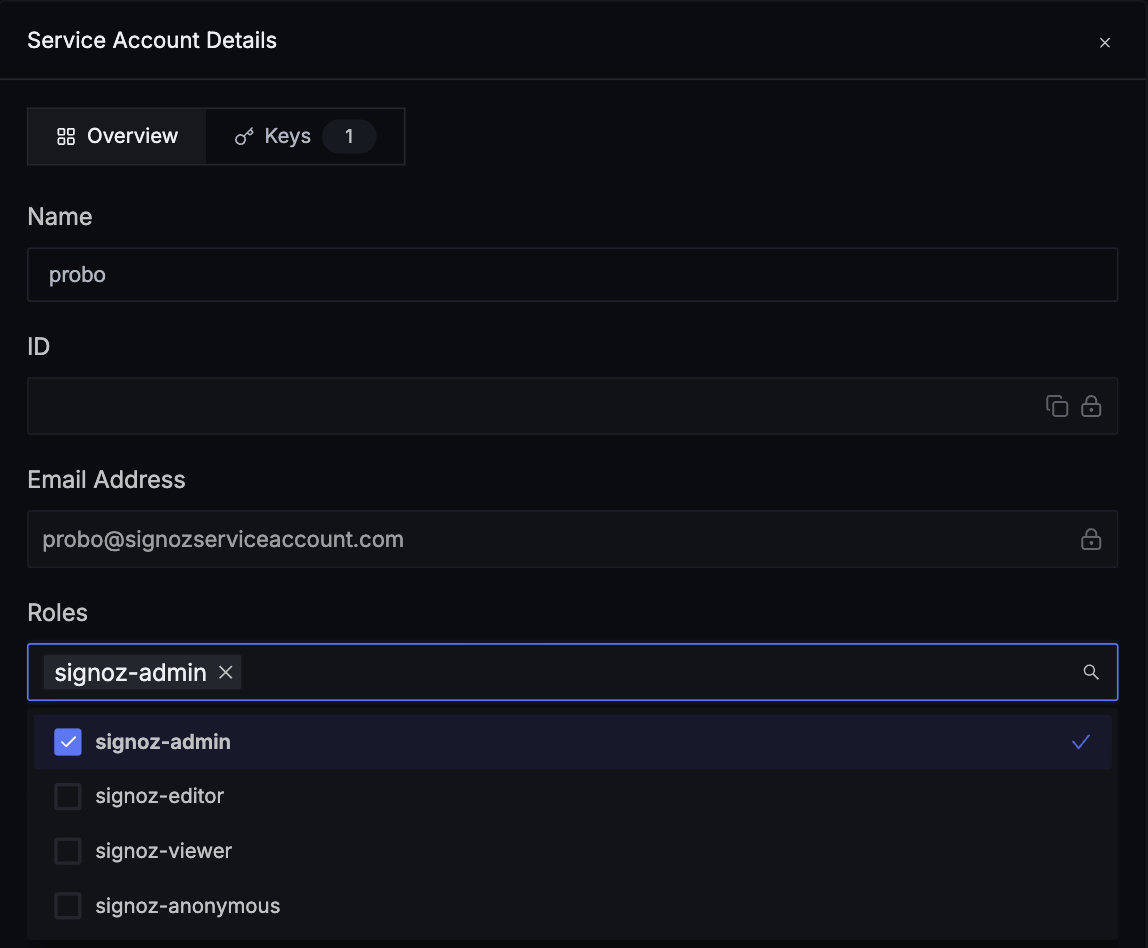
- In SigNoz, signed in with the SigNoz-Admin role, open Settings and go to Service Accounts.
- Click New Service Account, enter a Name in lowercase letters and hyphens, starting with a letter (e.g.
probo-access-review), and click Create Service Account. - Open the service account. In the Overview tab, select
signoz-adminin the Roles dropdown, then click Save Changes. - Open the Keys tab, click Add Key, enter a Name in lowercase letters and hyphens, starting with a letter (e.g.
probo-access-review), keep Expiration on No Expiration so the key stays valid until it is revoked, and click Create Key. Copy the key and store it securely. SigNoz shows it only once.
Step 2: Connect in Probo
Section titled “Step 2: Connect in Probo”- In Probo, go to Access Review > Connections.
- Find SigNoz, click API Key, paste the key, enter your Base URL (the address of the instance the key was created on), and click Connect.
Probo names the source after your SigNoz organization and pulls its members and service accounts into your campaigns.
Troubleshooting
Section titled “Troubleshooting”- The source says the SigNoz credentials are invalid. SigNoz rejected the key, or Probo did not reach the SigNoz API. Confirm it is a service account API key from Settings > Service Accounts rather than an ingestion key from Settings > Ingestion, that it has not expired or been revoked, and that the Base URL points at the instance the key was created on. On a self-hosted instance, also check that SigNoz runs v0.118.0 or later: an older version answers Probo with its web page instead of the API, which the source reports the same way.
- The source says SigNoz refused this request. The key is valid, but the service account does not hold the SigNoz-Admin role, which SigNoz requires to list members and their roles. Probo saves the connection anyway and flags the source afterwards. Open the service account’s Overview tab, select
signoz-adminin Roles and click Save Changes. The existing key picks up the role, so you do not need to reconnect: reload the page in Probo. The source keeps its generic name, though: SigNoz also refused the organization lookup that Probo runs once after the source is created. - Key creation is unavailable. By default only the
signoz-adminrole can create service accounts and their keys. Ask a SigNoz admin to create the key. On SigNoz Cloud, and on Self-Hosted Enterprise versions that support custom roles for service accounts, an admin can instead grant a custom role scoped to that one service account. That needs an active SigNoz license and is not available on Self-Hosted Community. - A self-hosted source cannot be reached. Probo calls the Base URL from its own infrastructure, so it cannot connect to a SigNoz deployment that is only reachable on a private network or on
localhost.